Module 3: GitOps fundamentals with Argo CD
Throughout this workshop, most configuration changes you make will be driven through Git and applied by Argo CD. Before you get there, it’s worth understanding the mechanics of that loop first-hand — push a manifest to Git, tell Argo CD to sync, change something, and watch it reconcile.
In this module, you will deploy a simple application the GitOps way, then deliberately break the pattern to see how Argo CD responds.
Learning objectives
By the end of this module, you will be able to:
-
Explain the GitOps reconciliation loop — desired state in Git versus actual state on the cluster
-
Create an Argo CD Application that deploys a workload from a Git repository
-
Modify a manifest in Git and manually sync the change
-
Observe how Argo CD detects and corrects drift when the cluster is modified directly
The GitOps model
Traditional deployments work by pushing changes to a cluster: you run oc apply, maybe a Jenkins pipeline runs kubectl, or someone clicks a button in a console. The cluster has no reference of what it should look like — it only knows what it does look like right now.
GitOps inverts this. A Git repository holds the desired state — the complete set of manifests that define a workload. A controller (Argo CD, in your case) continuously compares that desired state in Git against the cluster’s actual state and reconciles the difference.
| Traditional | GitOps |
|---|---|
Push changes to the cluster |
Declare state in Git; controller pulls and applies |
No drift detection |
Continuous comparison; drift is flagged or auto-corrected |
Audit trail depends on CI logs |
Git history is the audit trail |
Rollback means re-running a pipeline |
Rollback means reverting a commit |
This module gives you the hands-on feel for that loop before you use it for the rest of the workshop.
Exercise 1: Explore the sample application
A repository named prerequisite-samples has been pre-created in your GitLab instance. It contains a gitops/ directory with three Kubernetes manifests. These manifests define a basic HTTP server deployment.
-
Open the GitLab tab and log in if prompted:
-
Username:
pe1 -
Password:
{common_password}
-
-
Click the rhdh/prerequisite-samples/ repository
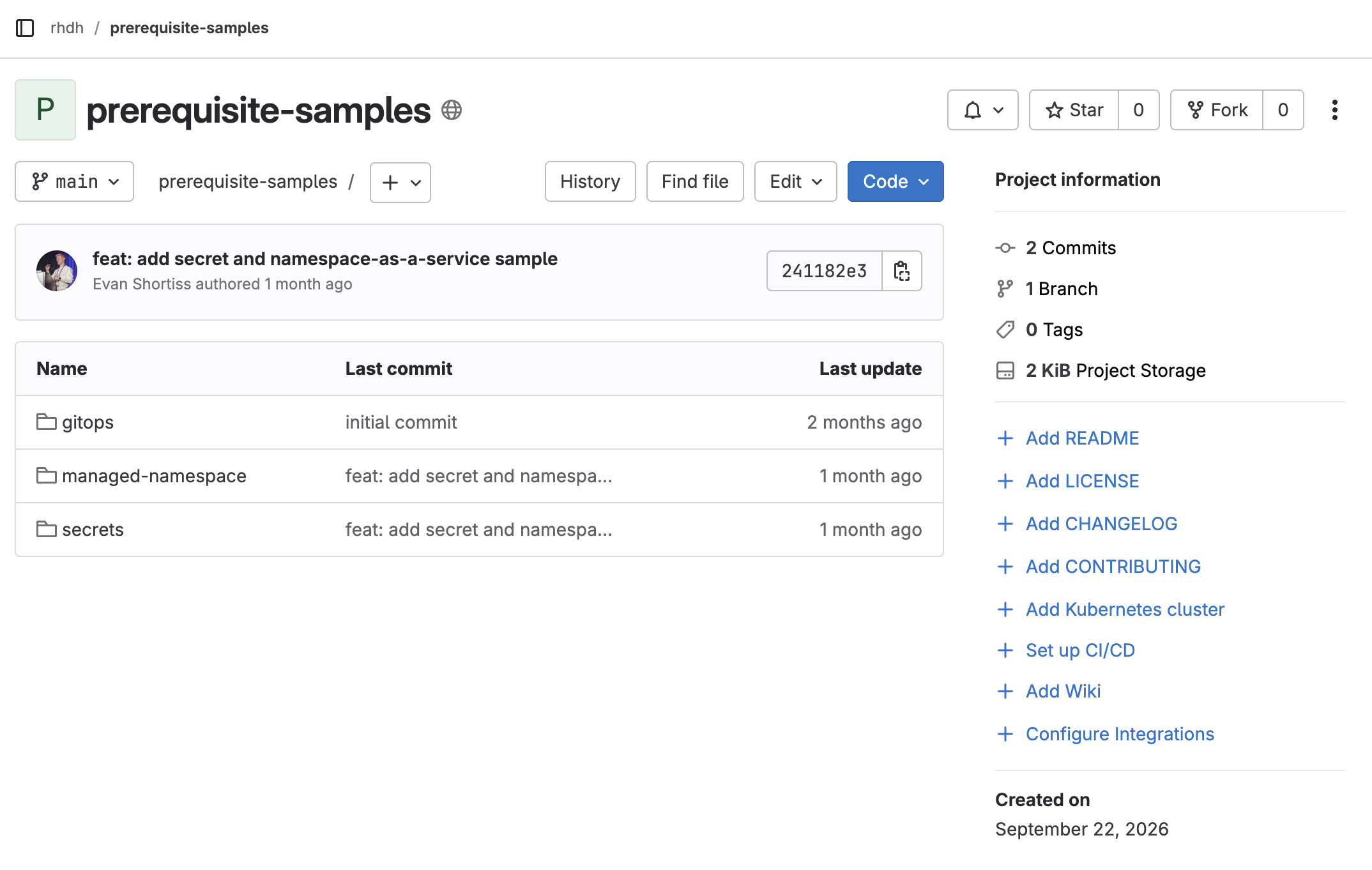 Figure 1. The samples repository in GitLab
 -
Open the
gitops/folderYou should see three files:
-
deployment.yaml— A single-replica Deployment running a UBI httpd container -
service.yaml— A Service exposing port 8080 -
route.yaml— An OpenShift Route providing external HTTPS access
-
-
Click on
deployment.yamland review it. Note:-
The image is
registry.access.redhat.com/ubi9/httpd-24:latest— a minimal Red Hat web server -
replicas: 1— a single pod -
The container listens on port
8080
-
-
Click on
route.yaml. The Route uses TLS edge termination, so the application will be accessible over HTTPS.
Argo CD can apply a directory of plain manifests directly. Tools such as Helm and Kustomize are supported for more complex templating — more on those later.
Exercise 2: Create an Argo CD Application
Now you will instruct Argo CD to deploy these manifests by creating an Application CR. An Application CR allows you to define the parameters used to control how Argo CD manages the underlying resources. For example, you could disable Self Healing so that Argo CD will not make any changes when a resource is modified on the underlying cluster causing it to differ from the manifest in Git — this setting is often disabled during development or debugging.
-
Open the Argo CD tab and log in if prompted:
-
Click Log in via OpenShift, select the developers identity provider
-
Username:
pe1 -
Password:
{common_password}
-
-
Take a look at the Applications already on the dashboard. You will see entries like
app-of-apps,gitlab,keycloak,vault, and others.These aren’t left over from a previous exercise — they are the workshop environment. The lab authors manage the entire cluster infrastructure using the same GitOps approach you are about to learn. Every service you’ve used so far (GitLab, Argo CD itself, the identity provider) was deployed and is maintained by an Argo CD Application. What you are about to do is exactly the same pattern, just with your own workload.
The user you’ve logged in as can view, but not edit/delete the existing Argo CD Applications. You have write access in a separate pe-workshopArgo CD Project, separate from the core workshop infrastructure. -
Click + New App at the top of the UI
-
Fill in the Application details:
Field Value Application Name
sample-appProject Name
pe-workshopSync Policy
ManualSet Deletion Finalizer
EnabledAuto-Create Namespace
EnabledRepository URL
https://gitlab-gitlab.%openshift_cluster_ingress_domain%/rhdh/prerequisite-samples.gitRevision
mainPath
gitopsCluster URL
https://kubernetes.default.svcNamespace
prerequisite-samples -
Click Create, then enter "sample" in the search input in Argo CD
The Application appears in the Argo CD dashboard with a status of OutOfSync. This is expected — you told Argo CD what to deploy but haven’t told it to deploy yet. Argo CD would have applied the resources by now if you had set Sync Policy to Automatic instead of Manual in the Application configuration.
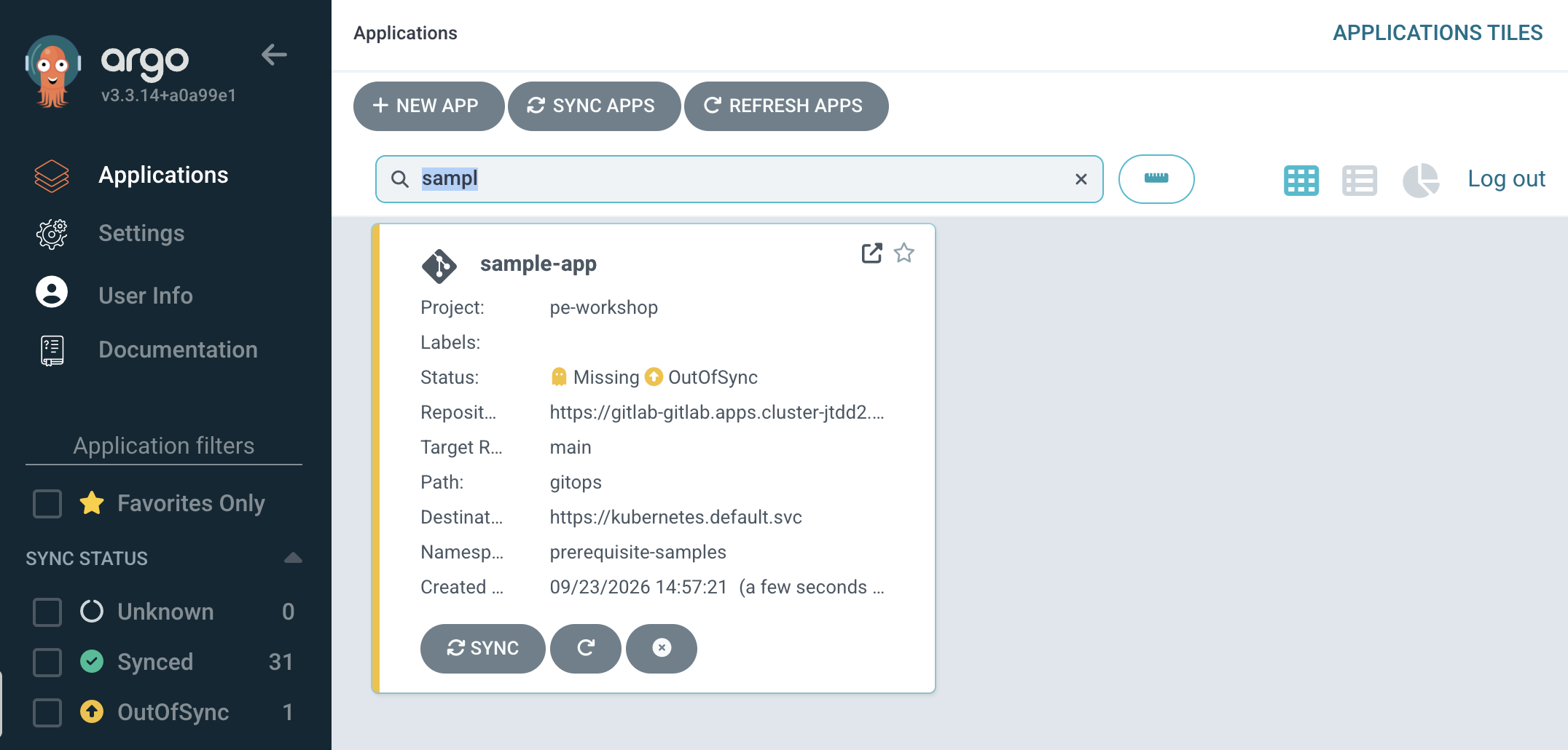
You’ve set up a Manual Sync Policy here to slow the process enough to see it at each stage: OutOfSync detection, synchronization, and the resources created or changed to reconcile the workload with the desired state. In a later module, you will reconfigure for the Automatic Sync Policy of production deployments.
Sync the Application
-
Click on the sample-app Application tile
-
Click the Sync button, then Synchronize in the panel that appears
-
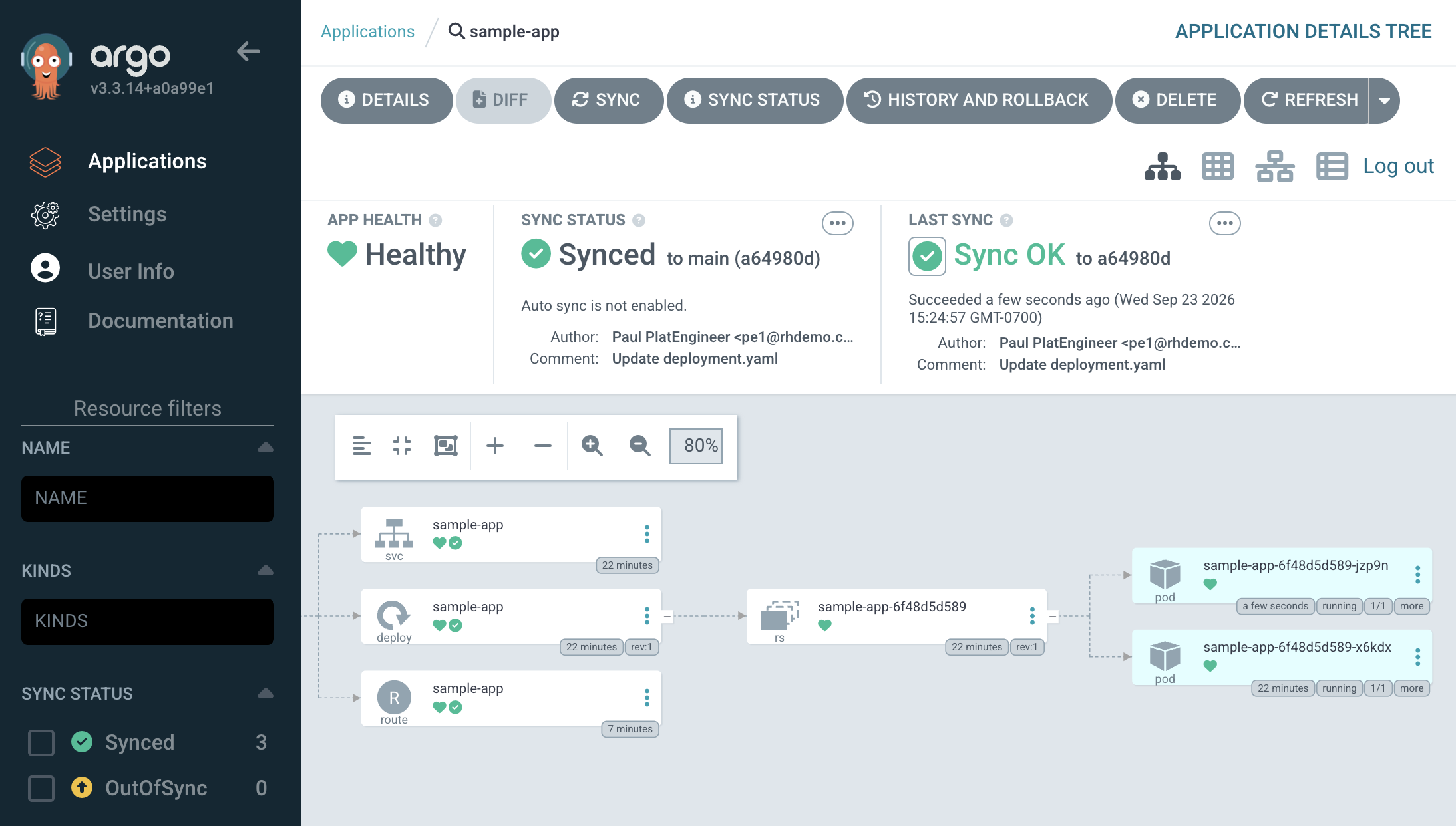
Watch the resource tree populate as Argo CD applies the manifests to your cluster:
-
A Deployment creates a ReplicaSet, which creates a Pod
-
A Service is created
-
A Route is created
-
The status should change from OutOfSync to Synced, and the health should show Healthy once the Pod is running.
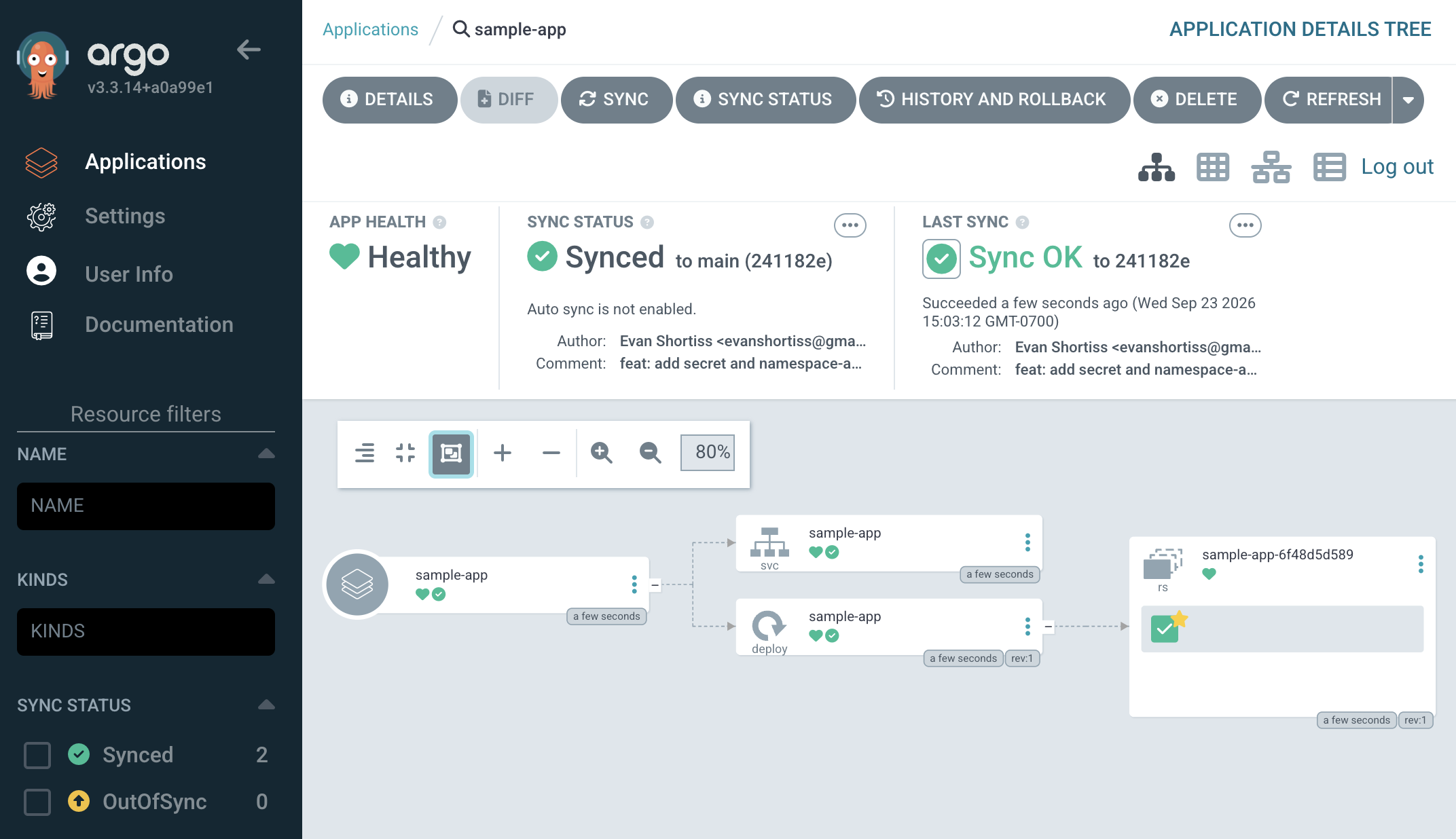
Verify
Open a new browser tab and navigate to the Route URL. You can find it by running the following command in the terminal:
oc get route sample-app -n prerequisite-samples -o jsonpath='https://{.spec.host}{"\n"}'You should see the default Red Hat httpd test page. That’s it! An application deployed entirely from manifests stored and versioned in Git.
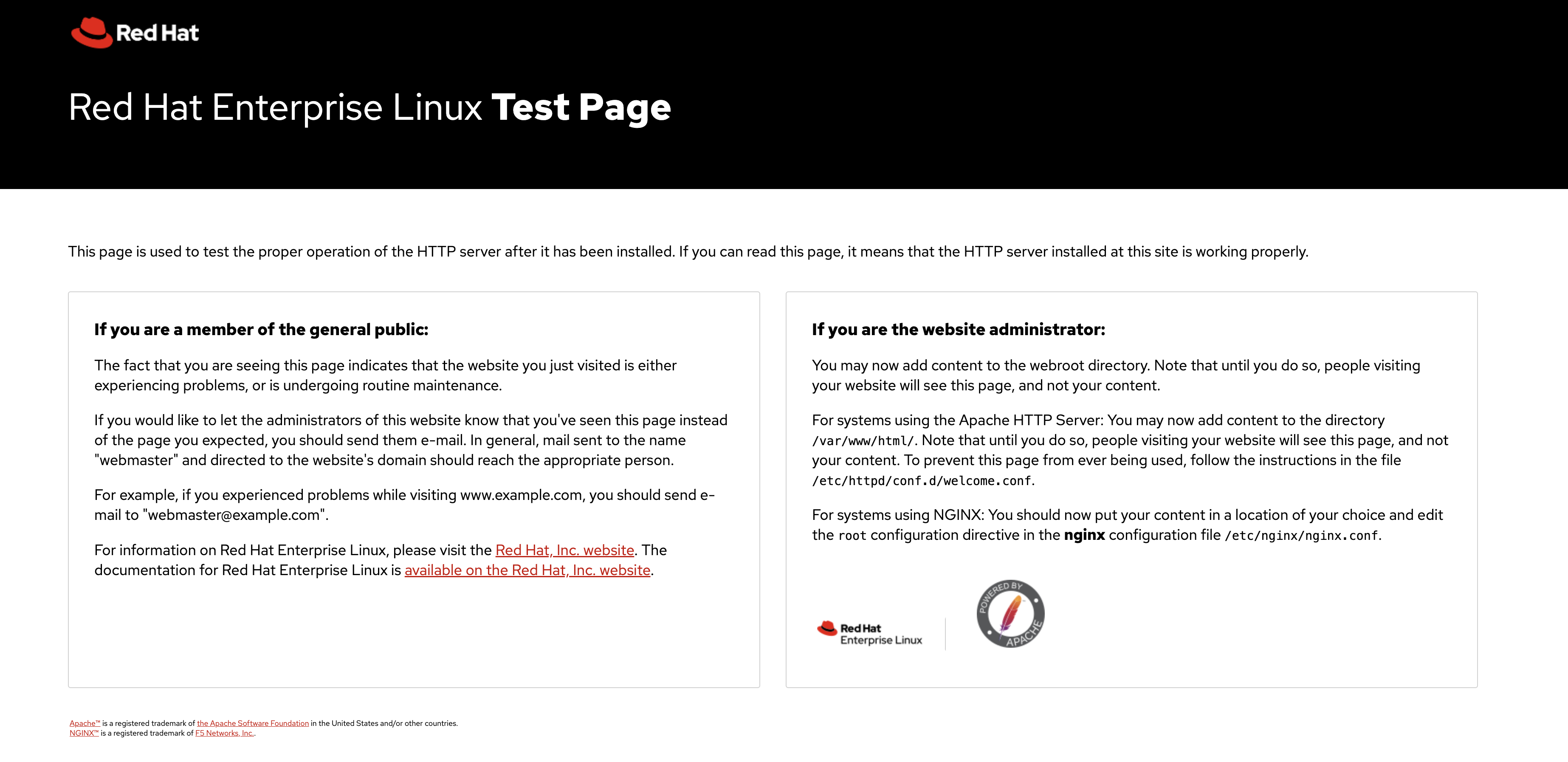
Exercise 3: Modify in Git, sync the change
Now you will change the desired state in Git and watch Argo CD detect and apply the difference.
-
In the GitLab tab, navigate to
prerequisite-samples/gitops/deployment.yaml -
Click Edit > Edit single file
-
Change the replica count from
1to2:spec: replicas: 2 -
Click Commit changes (commit directly to
main) -
Switch to the Argo CD tab. Within a few moments, the
sample-appApplication status will change to OutOfSyncClick the Refresh button to force Argo CD to check the Git repository for changes if it takes too long to auto detect. Argo CD has detected that the desired state in Git (2 replicas) no longer matches the actual state on the cluster (1 replica). You will see a yellow OutOfSync indicator on the Deployment resource.
-
Click Sync, then Synchronize to apply the change
-
Watch the Deployment scale from 1 to 2 pods. A second ReplicaSet entry may appear briefly as the rollout completes.
Exercise 4: Drift detection
You’ve seen the Git-to-cluster direction. Now you will go the other way — modify the cluster directly and see how Argo CD responds.
In a production environment, this simulates someone making an ad-hoc change via oc or the OpenShift console, bypassing the Git workflow.
-
In the Terminal tab, scale the deployment directly on the cluster:
oc scale deployment/sample-app -n prerequisite-samples --replicas=3 -
Verify the cluster now has 3 pods running:
oc get pods -n prerequisite-samples -l app=sample-appYou should see three pods in a
Runningstate. -
Switch to the Argo CD tab. After a short interval, the Application status changes to OutOfSync.
Argo CD has detected that the cluster state (3 replicas) no longer matches the desired state in Git (2 replicas). The cluster is wrong, not Git.
-
Click on the Deployment and select the Diff tab to see exactly what is causing the OutOfSync status.
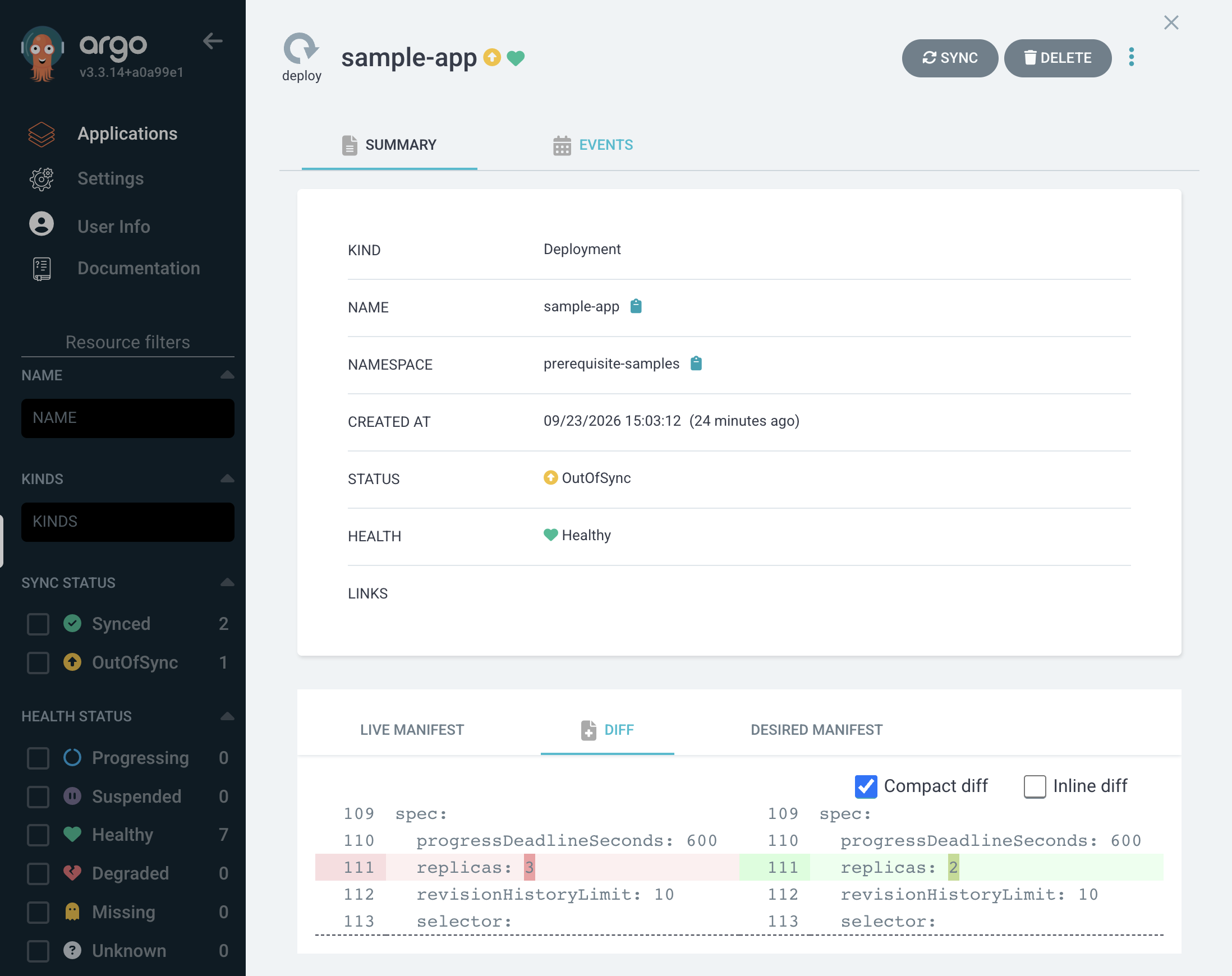 Figure 6. The diff beteween desired and current on-cluster state, seen in Argo CD
 -
Click Sync, then Synchronize to correct the drift.
Argo CD scales the Deployment back down to 2 replicas — the number defined in Git.
-
Verify with the CLI:
oc get pods -n prerequisite-samples -l app=sample-appYou should see two pods again. Git wins.
Clean up
Before moving on, delete the sample Application. You won’t need it for the rest of the workshop.
Although you’ve been using the Argo CD UI, an Argo CD Application is just a Kubernetes custom resource stored in the openshift-gitops namespace. You can manage it with oc like any other resource.
-
In the Terminal tab, view the Application resource:
oc get application sample-app -n openshift-gitops -
Delete it:
oc delete application sample-app -n openshift-gitopsDo not attempt to delete any other Argo CD Application(s) using the ocCLI — this could break your workshop environment.Argo CD will remove the Application and the resources it manages (Deployment, Service, Route) from the cluster.
-
Verify the managed resources are gone:
oc get deployment,service,route -n prerequisite-samples -l app=sample-appYou should see
No resources found, unless you missed the deletion finalizer during the creation step. Without a deletion finalizer, Argo CD will leave the resources it once managed behind. -
Switch to the Argo CD tab and refresh — the
sample-apptile is gone. The UI is just a view over the same Kubernetes resources you managed from the CLI.
Module summary
You’ve experienced the complete GitOps loop: deploy from Git, change in Git, sync to cluster, and detect and correct drift.
What you accomplished:
-
Created an Argo CD Application with manual sync
-
Deployed a three-resource application (Deployment, Service, Route) from Git
-
Modified a manifest in GitLab and synced the change through Argo CD
-
Manually altered the cluster and watched Argo CD detect and correct the drift
Key takeaway: Git is the single source of truth. The cluster converges to match it, and changes made outside of Git are treated as drift to be corrected. This is the same model you will use for every Developer Hub configuration change in the modules that follow.
Next steps: In Module 4, you will use a similar pattern to manage secrets — storing sensitive data in Vault and watching External Secrets sync it into Kubernetes automatically.