Module 4: Connect Developer Hub to the Platform
A developer portal with guest authentication and no integrations isn’t very useful. Parasol’s developers need to log in with their corporate identity and see their CI/CD pipelines, deployment topology, and application status — all without leaving the portal.
In this module, you will connect Developer Hub to platform capabilities by configuring SSO authentication, enabling dynamic plugins, and integrating with platform services — transforming it from a blank canvas into a connected portal.
Portal] RHDH --> KC[Keycloak
SSO Authentication] RHDH --> GL[GitLab
Source Control] RHDH --> OCP[OpenShift
Kubernetes API] RHDH --> ARGO[Argo CD
GitOps Deployments] style DEV fill:#f5f5f5,stroke:#333,stroke-width:2px,color:#333,font-size:16px style RHDH fill:#ee0000,stroke:#fff,stroke-width:3px,color:#fff,font-size:16px style KC fill:#4d4d4d,stroke:#fff,stroke-width:3px,color:#fff,font-size:14px style GL fill:#fc6d26,stroke:#fff,stroke-width:3px,color:#fff,font-size:14px style OCP fill:#ee0000,stroke:#fff,stroke-width:3px,color:#fff,font-size:14px style ARGO fill:#ef7b4d,stroke:#fff,stroke-width:3px,color:#fff,font-size:14px
Once connected, developers get a unified view of their platform without switching tools or filing tickets.
| Red Hat Build of Keycloak is used as a stand-in for your corporate identity provider for Developer Hub in this workshop. A complete list of supported identity providers can be found in the Developer Hub documentation. The same principles apply for source control, CI, CD, etc. |
Learning objectives
By the end of this module, you will be able to:
-
Connect Developer Hub to Keycloak for SSO authentication using OIDC
-
Enable dynamic plugins for CI/CD, GitOps, and Kubernetes integrations
-
Understand how ExternalSecrets connect Vault credentials to Developer Hub — the same pattern you learned in Module 4, now applied at scale
You will also see how Kustomize overlays let you layer these additions on top of the base configuration without modifying the original files - this is just a little bonus learning, but isn’t required when you embark on your own IDP journey.
|
Skipped the previous modules? If you didn’t complete the previous module, you can fast-forward to this module’s starting state by running: Wait for the Application to sync and the Pod to become healthy before continuing: It can take up to 5 minutes for the initial deployment to become ready, as it has to load and configure Developer Hub plugins for the first time. |
Exercise 0: Switch to the SSO and plugins overlay
The overlays/02-sso-plugins/ directory builds on the base configuration by adding:
-
OIDC authentication via Keycloak — users log in with their corporate identity
-
Dynamic plugins — Tekton pipeline view, Argo CD deployment status, Kubernetes topology, GitLab integration, and a global header with links to platform tools
-
ExternalSecrets — credentials for GitLab, Argo CD, and Kubernetes are pulled from Vault automatically, and used by Developer Hub plugins
You will update the Argo CD Application that manages Developer Hub using oc patch from the terminal — the same way a platform engineer would in automation or a script.
-
In the Terminal tab, verify the current Application configuration:
oc get application developer-hub -n openshift-gitops -o jsonpath='{.spec.source.path}{"\n"}'You should see
base— the current overlay. -
Patch the Application to point at the new overlay:
oc patch application developer-hub -n openshift-gitops --type merge -p '{"spec":{"source":{"path":"overlays/02-sso-plugins"}}}'
While you wait for Developer Hub to rollout the new configuration, the next section will explain the configuration you just applied.
Exercise 1: Vault, Keycloak, and External Secrets
| We’ve done the prerequisite work of loading secret data in Vault for you. The key focus of this workshop is to learn the high-level configuration steps and understand the benefit you can provide to developer teams with Red Hat Developer Hub. You will leave this workshop with an excellent template to start building out your own internal developer portal. |
Take a look at the pieces that have been pre-configured for this module. Vault was introduced in a prior module — now you will see how it can be used to provide secrets required by Developer Hub’s plugins and integrations through ExternalSecrets to allow Developer Hub to ingest data from your platform components.
How the pieces connect
The following diagram shows how credentials flow from Vault to Developer Hub:
Secrets Backend] --> VS[secrets/keycloak/
client-secret] ES[ExternalSecret CR
oauth-client] -.->|references path| VS ES -->|External Secrets Operator
reads from Vault| V ES -->|creates| K8S[Kubernetes Secret
oauth-client] K8S -->|mounted as
environment vars| RHDH[Developer Hub Pod] KC[Keycloak
backstage realm] <-->|OIDC authentication
using client credentials| RHDH style V fill:#326ce5,stroke:#fff,stroke-width:3px,color:#fff,font-size:16px style VS fill:#5b8fc5,stroke:#fff,stroke-width:2px,color:#fff,font-size:14px style KC fill:#4d4d4d,stroke:#fff,stroke-width:3px,color:#fff,font-size:16px style ES fill:#f59300,stroke:#fff,stroke-width:3px,color:#fff,font-size:16px style K8S fill:#326ce5,stroke:#fff,stroke-width:3px,color:#fff,font-size:16px style RHDH fill:#ee0000,stroke:#fff,stroke-width:3px,color:#fff,font-size:16px
Key points:
-
Vault is the single source of truth — all credentials stored at specific paths
-
ExternalSecret CR references the Vault path but contains no secrets itself
-
External Secrets Operator reads from Vault and automatically creates Kubernetes Secrets
-
Developer Hub consumes the Kubernetes Secret (mounted as environment variables)
-
Keycloak authenticates users via OIDC using the credentials from the Secret
This same pattern is used for all five secrets in this overlay: Keycloak OIDC, GitLab tokens, Argo CD passwords, Kubernetes service account tokens, and backend secrets.
Keycloak: the identity provider
-
Log in to the Keycloak admin console. Retrieve the admin credentials from the terminal:
KC_USER=$(oc get secret keycloak-initial-admin -n keycloak -o jsonpath='{.data.username}' | base64 -d) KC_PASS=$(oc get secret keycloak-initial-admin -n keycloak -o jsonpath='{.data.password}' | base64 -d) echo "Username: $KC_USER" echo "Password: $KC_PASS" -
Select the Keycloak tab on the right.
-
Expand the sidemenu. In the top-left dropdown, select the backstage realm. This realm has been pre-configured with:
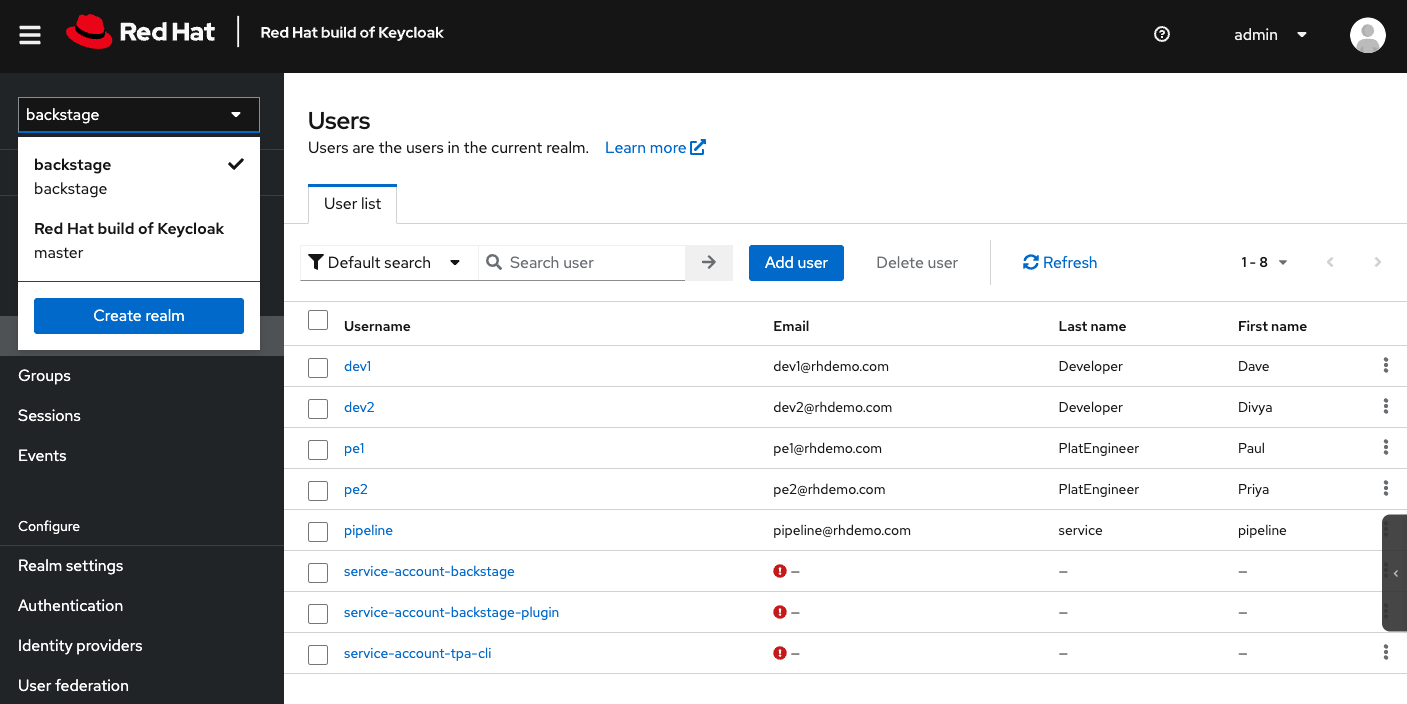 Figure 1. Users pre-created in the Backstage Realm in Keycloak
-
Users and groups — The same
dev1,dev2,pe1, andpe2users you’ve used throughout the workshop, organised intodevelopersandplatformengineersgroups -
Clients — A
backstageclient configured for OIDC authentication with Developer Hub
-
-
Click Clients in the left sidebar and select backstage. Note the Client ID (
backstage) — Developer Hub will use this to authenticate users via OIDC. The client secret is stored in Vault, not here in the UI. Also note that we’ve pre-configured origins, redirect URIs, and such for you ahead of time.
Vault: the credentials
-
Open the Vault tab and log in with the Token method. Retrieve your Vault root token from the terminal:
VAULT_TOKEN=$(oc get secret vault-token -n vault -o jsonpath='{.data.token}' | base64 -d) echo "Token: $VAULT_TOKEN" -
Navigate to
kv>secrets/>keycloak/>client-secretthen select the Secret tab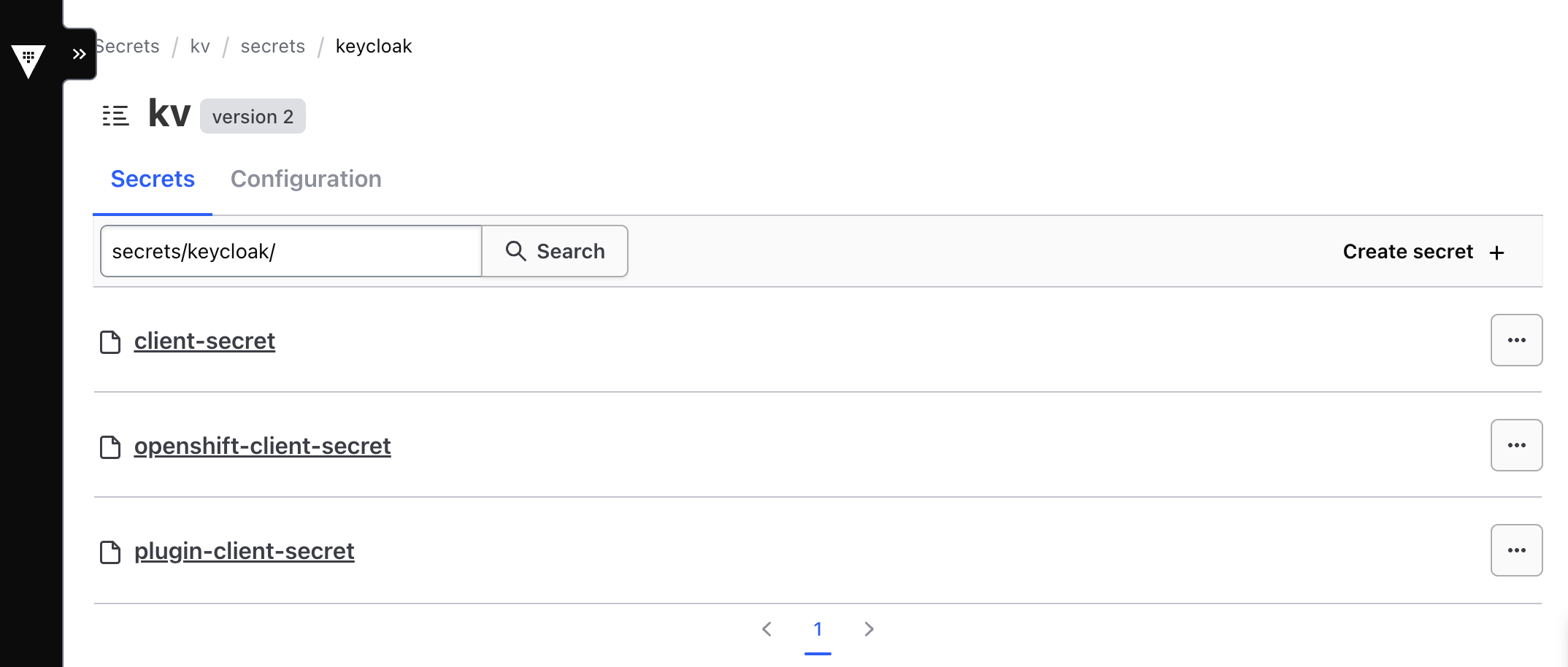 Figure 2. Secrets pre-created in Vault to save you some time
You will see the
clientIdandclientSecretvalues that Developer Hub needs to connect to Keycloak. These are the same credentials referenced by thebackstageclient you just saw in Keycloak.
The workshop has pre-populated the credentials in Vault to save time, but a platform team will typically add them to Vault as necessary to make them available to applications. If the Secret is updated in Vault, downstream applications will receeive the new value automatically.
ExternalSecrets: the bridge
-
Open the GitLab tab and log in as
pe1with password{common_password}if prompted -
Navigate to rhdh/ocp-pe-wkshp-rhdh-configs and open the
overlays/02-sso-plugins/folder -
Open
es-oauth-client.yaml. This ExternalSecret follows exactly the same pattern you used in Module 4: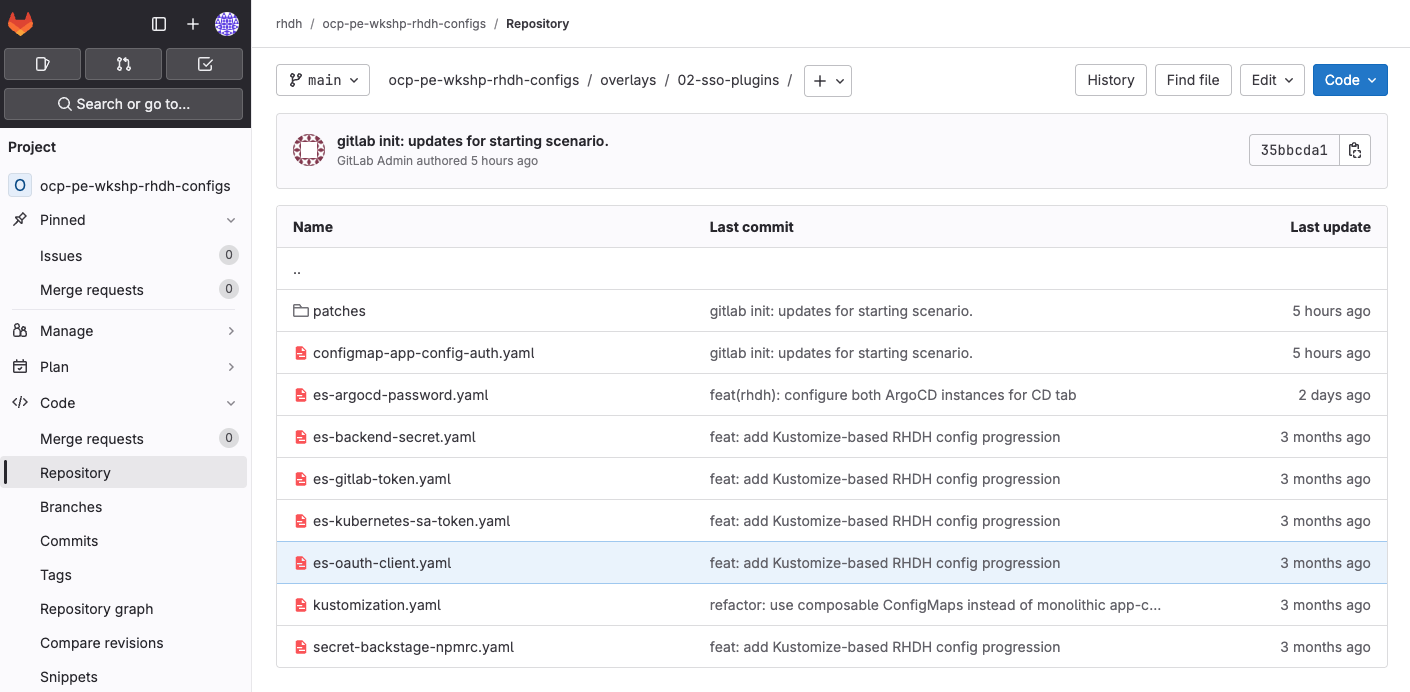 Figure 3. External Secret CRs for Developer Hub
-
It references the
vault-secret-storeClusterSecretStore -
It pulls
clientIdandclientSecretfrom the Vault pathsecrets/keycloak/client-secret -
It creates a Kubernetes Secret named
oauth-clientthat Developer Hub will consumeThe file contains only references — no sensitive values.
-
-
Notice the additional
es-*.yamlfiles in this directory that are also used by Developer Hub.
| The External Secrets are individual files in this example, however you could combine them into a single file for convenience. |
Every credential Developer Hub needs is pulled from Vault automatically. Nothing is hardcoded in Git. Rotating the credentials and updating them in Vault will result in any ExternalSecret reference also updating the Secret used by Developer Hub.
Exercise 2: Log in with SSO
Developer Hub is now configured with Keycloak OIDC authentication. Guest access is disabled.
|
You will need to wait until the new Pod in your |
-
Open the Developer Hub tab and click the refresh icon at the top
-
You should see a login page with an OIDC sign-in option
-
Log in with your credentials:
-
Username:
pe1 -
Password:
{common_password}
-
-
Once logged in, notice what’s changed:
-
Your identity is displayed in the top-right profile menu
If the header is missing, this is a known bug and a fix is coming soon. Fix it by restarting Developer Hub the following command:
oc rollout restart deployment/backstage-developer-hub -n rhdhWait for Developer Hub to be ready using this command:
oc rollout status deployment/backstage-developer-hub -n rhdh -
The header’s Developer Tools (grid) icon now shows links to platform tools: DevSpaces, GitLab, and Quay
-
The sidebar has additional plugin entries
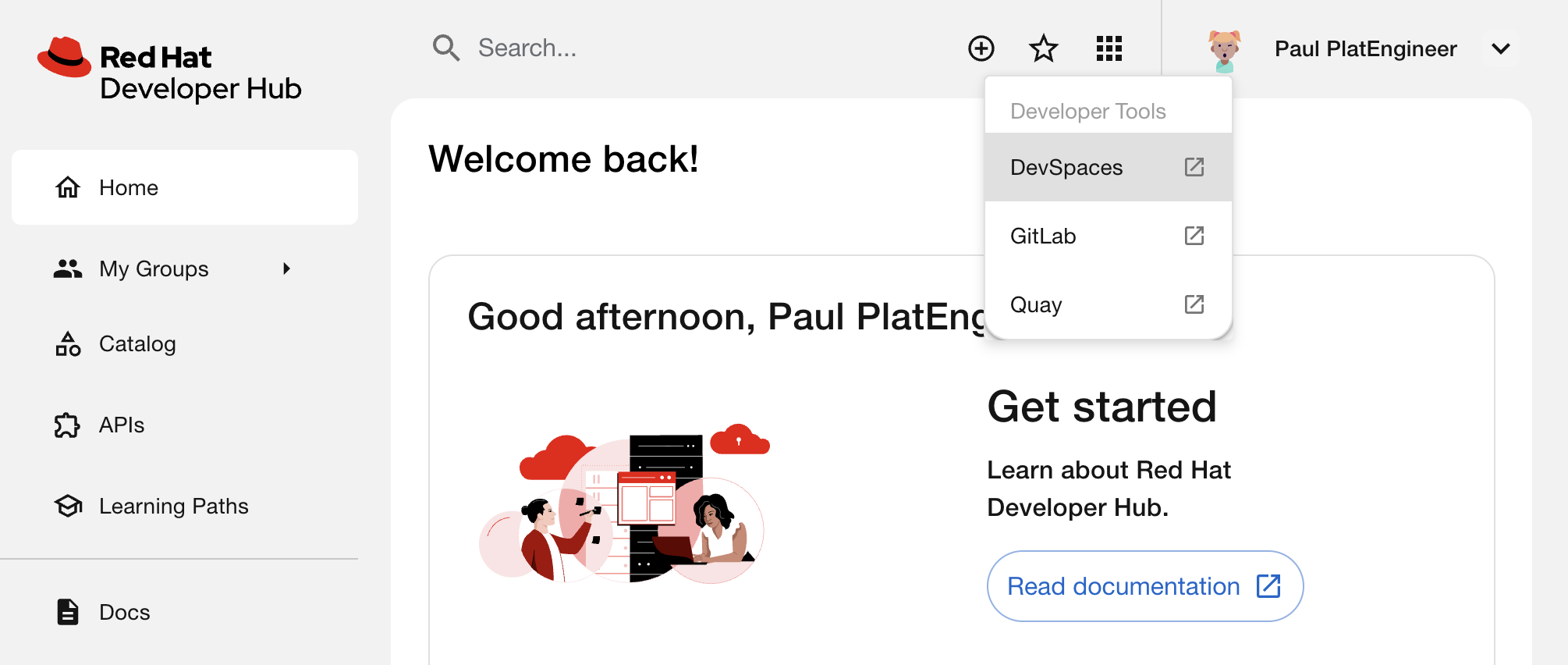 Figure 4. Developer Hub header showing identity and new links
-
Exercise 3: Explore the plugin capabilities
With our chosen dynamic plugins enabled, Developer Hub now connects to the platform services running on the cluster. Off-cluster services are also supported, but for this workshop everything is contained within the workshop environment.
-
Click on your identity in the top right corner, navigate to Settings and confirm your user identity is shown — this is your Keycloak profile, synced into Developer Hub.
Use the Pin Sidebar toggle to make the sidebar collapse as seen in the following image. 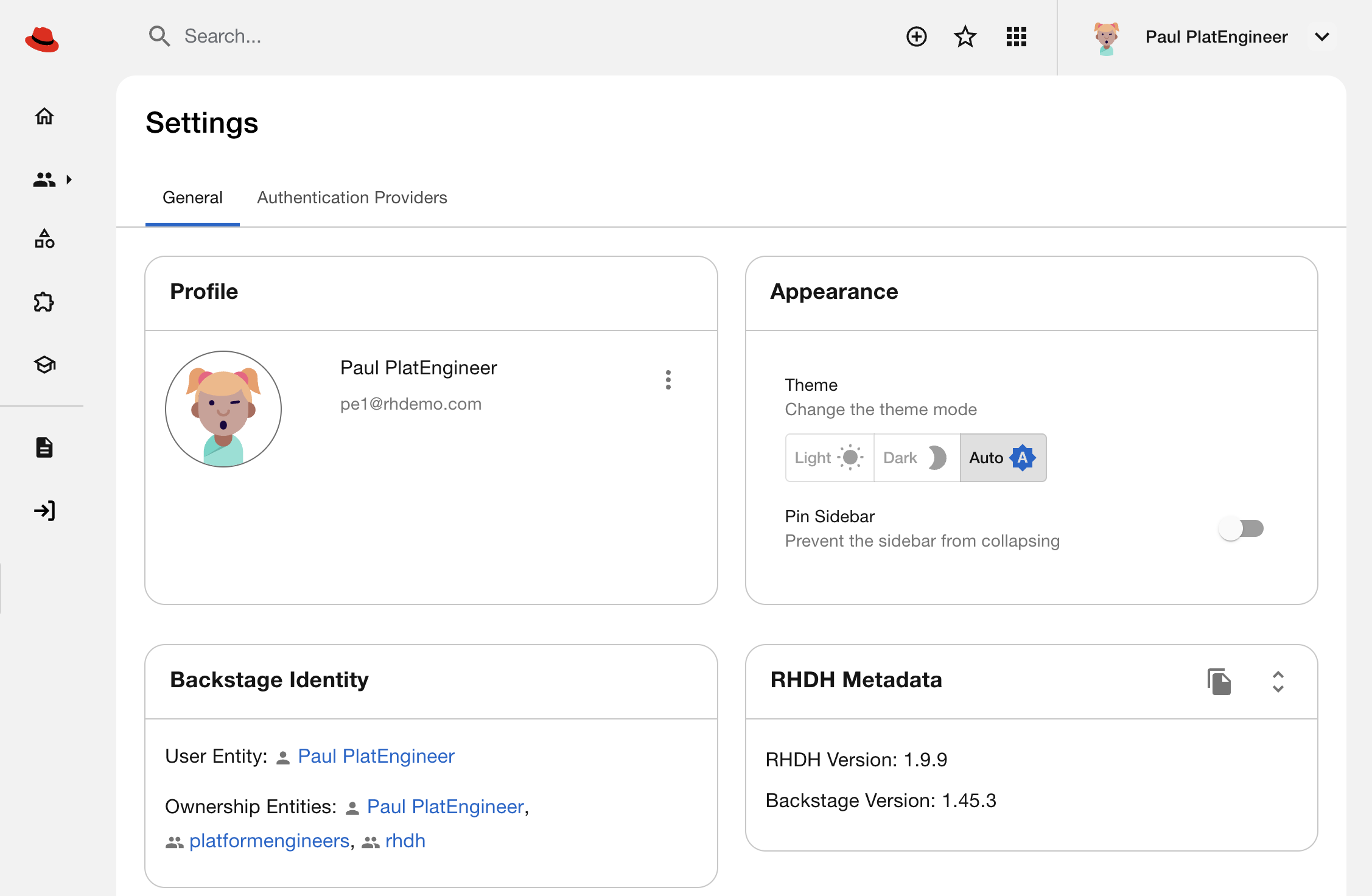 Figure 5. User Profile data is imported from Keycloak
 -
Navigate to Catalog and switch the Kind filter to User or Group. You should see entities already appearing:
-
Keycloak user sync — Developer Hub is now importing users and groups from Keycloak automatically. The
dev1,dev2,pe1, andpe2users and their groups (developers,platformengineers) should be visible as catalog entities.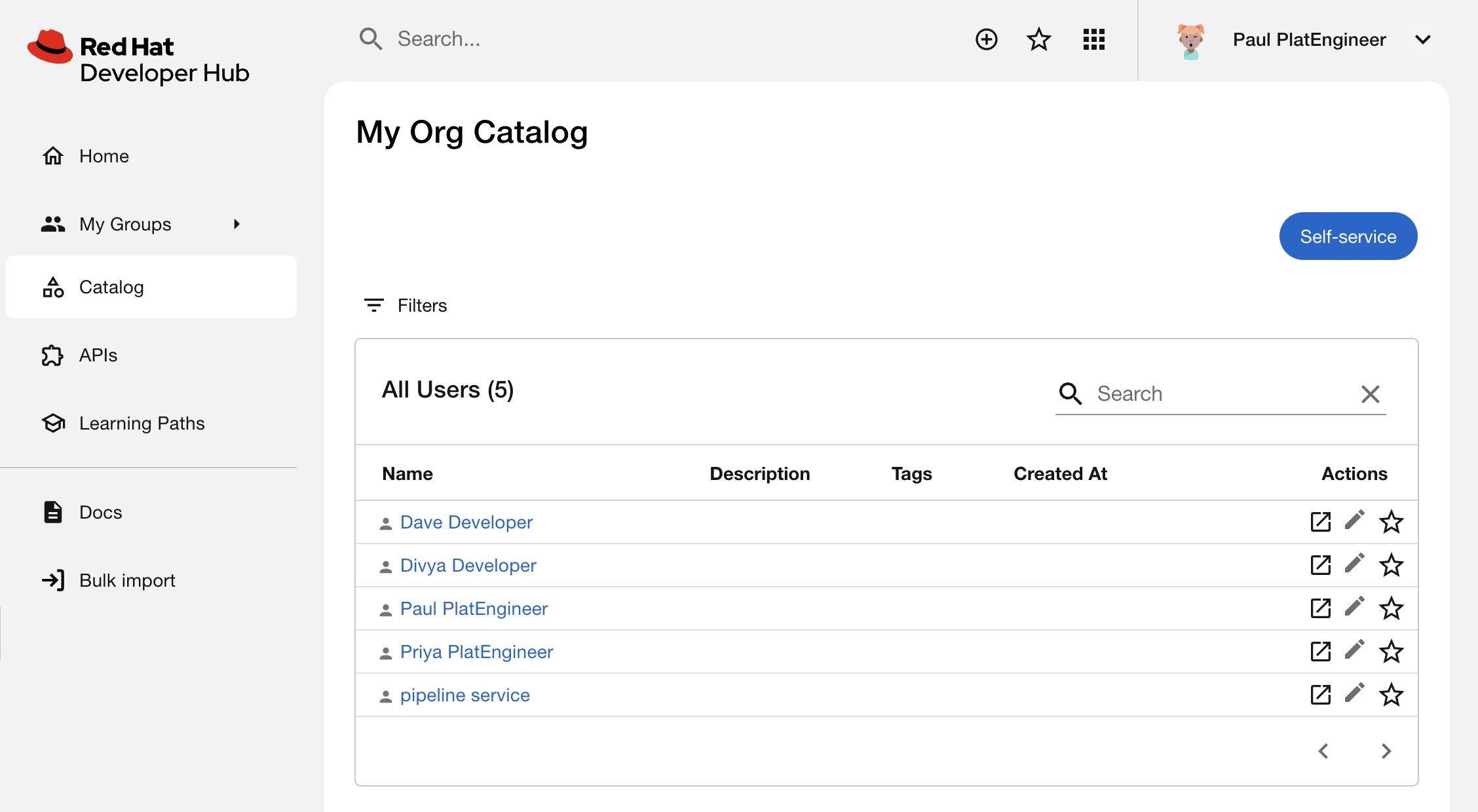 Figure 6. User Entities, synced into Developer Hub by the Keycloak integration
-
-
Switch the Kind filter to Component. You should see the parasol-insurance component appear:
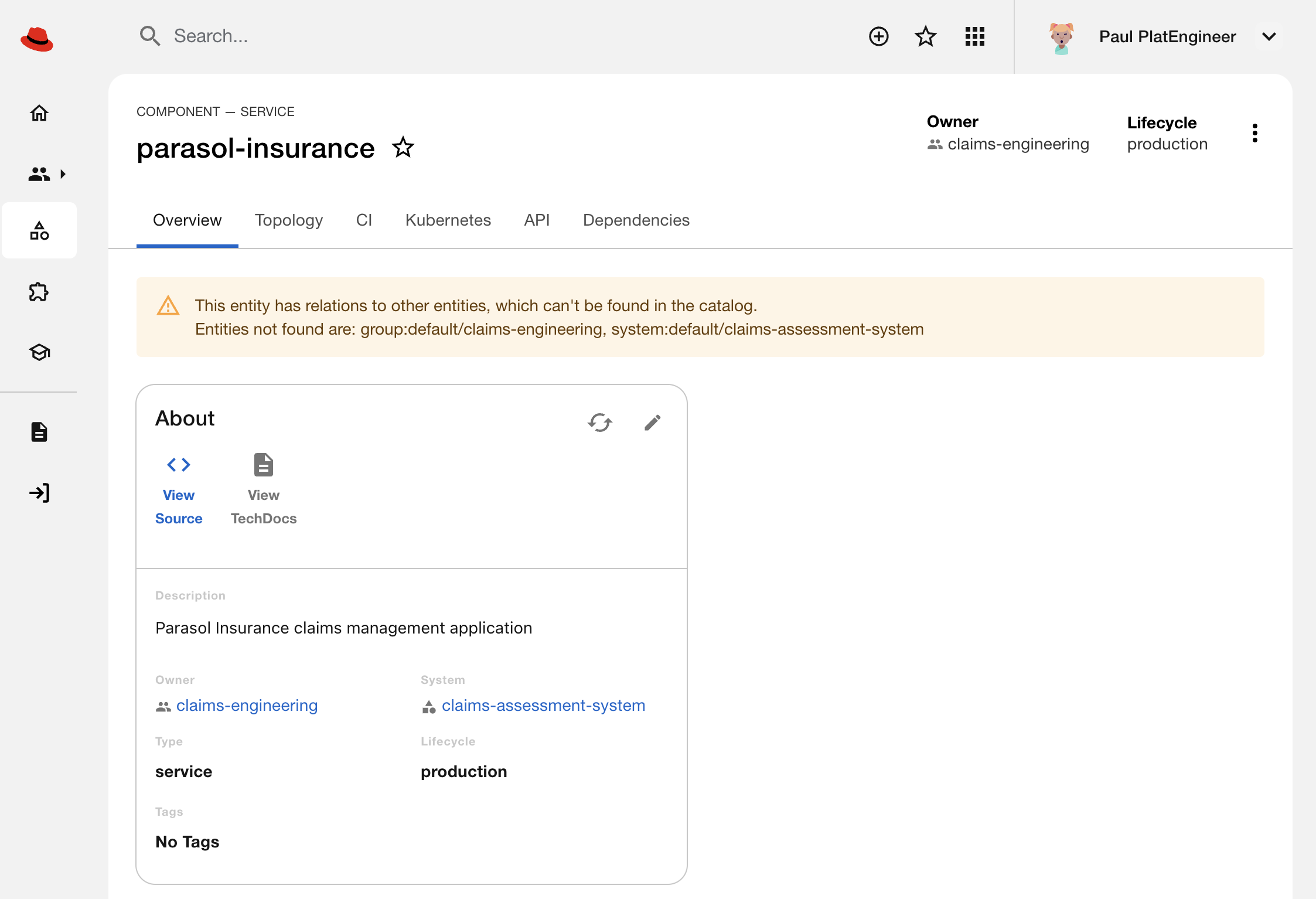 Figure 7. The Parasol Insurance application has been ingested from GitLab
A warning about missing relations will be shown on the Parasol Insurance component overview page. That’ll be fixed after you finish the next module! Click into the parasol-insurance component to explore data provided by the plugins:
-
Overview tab — Shows JIRA issues related to the component (the JIRA integration you just enabled - this uses fake data in this workshop environment)
-
CI tab — Displays recent OpenShift Pipelines (Tekton) runs, including SonarQube scan results for supply chain security
-
Topology tab — Shows running pods and Kubernetes resources
-
Kubernetes tab — Lists all related Kubernetes objects (Deployments, Services, Routes)
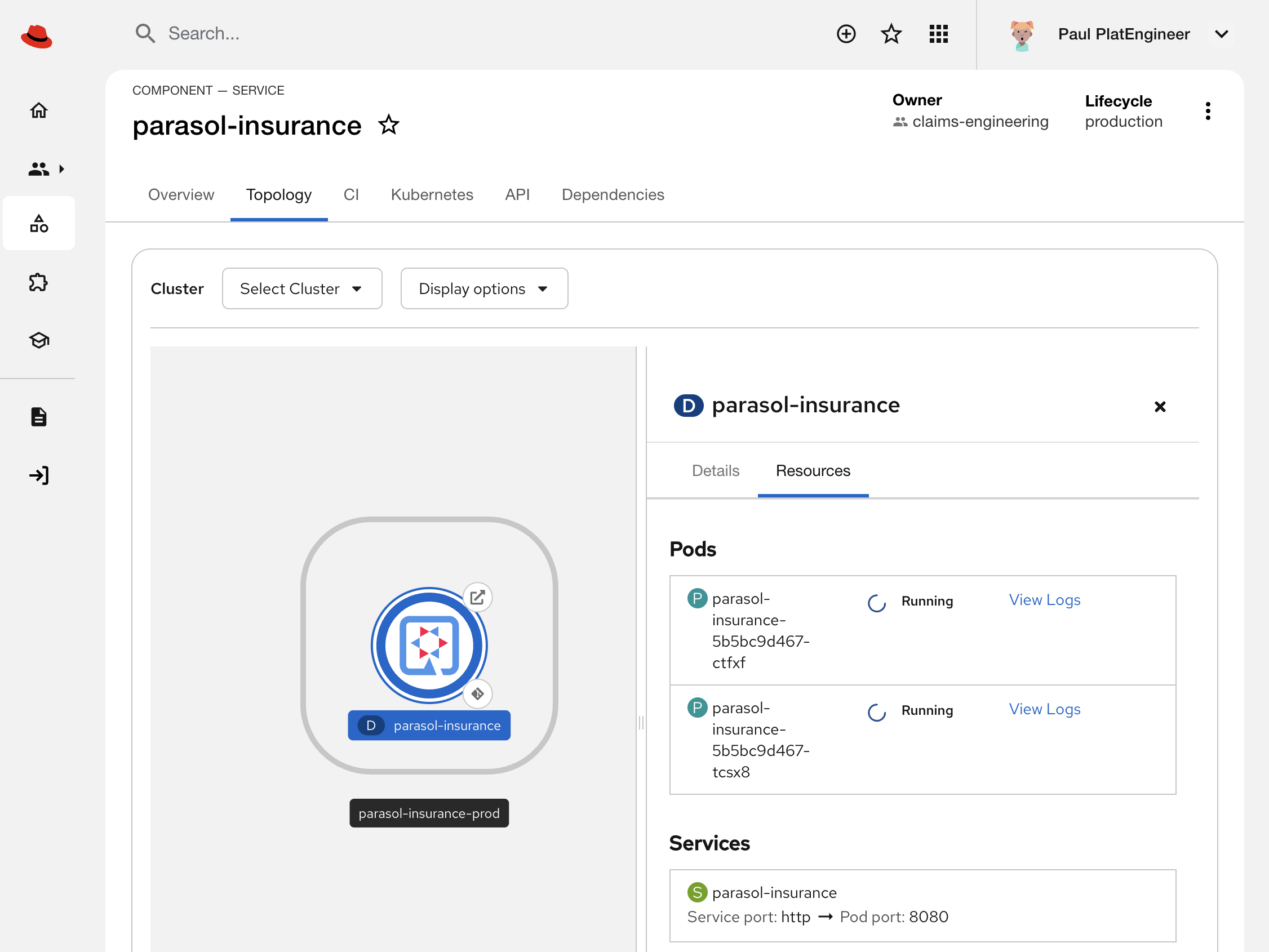 Figure 8. Parasol Insurance viewed in an OpenShift-styled Topology View
-
How did this component get configured?
GitLab discovery — Developer Hub has automatically discovered the parasol-insurance repository’s catalog-info.yaml file via the GitLab plugin you enabled.
|
The
Developer Hub reads these annotations to wire up the CI/CD tab (Tekton pipelines), Topology tab (Kubernetes resources), Overview tab (JIRA issues), and SonarQube scan results you just explored. The component’s developers can maintain this file in source control alongside their code, or externally as you will see in the next module. |
The integrations you just enabled are defined in two overlay files: dynamic-plugins.yaml lists the plugins (Keycloak, GitLab, Argo CD, Kubernetes, Tekton), and configmap-app-config-auth.yaml contains their configuration (OIDC settings, API endpoints, authentication providers).
Module summary
Developer Hub is now a connected portal with corporate SSO and platform integrations, providing a unified portal for developers to access application information, logs, CI pipelines, and more.
Key takeaway: Developers now have a single place to view builds, issues, app health, and logs — all gated by their corporate identity. Instead of switching between Jenkins, JIRA, and kubectl, they work from one unified portal. Onboarding new developers becomes seamless, since everything is in one place.
Next steps: In the next module, you will populate the software catalog with Parasol’s services, documentation and APIs, giving developers and AI agents a single place to understand the organisation’s software landscape.