Module 4: Secrets management with Vault
In the previous module, you deployed manifests from Git using Argo CD. But not everything belongs in a Git repository. Database passwords, API tokens, and OAuth client secrets are sensitive — committing them to source control, even a private repository, creates risk. Anyone with read access to the repo has access to every secret in it, and Git’s history makes them nearly impossible to truly delete.
This module introduces a pattern to solve that problem: secrets stored in HashiCorp Vault and synchronized with Kubernetes by the External Secrets Operator. You will see this pattern again when you configure Developer Hub with SSO and platform integrations. This is a routine mechanism for injecting tokens, passwords, and other sensitive data into applications and CI pipelines, without exposing them in plaintext.
Learning objectives
By the end of this module, you will be able to:
-
Explain why secrets don’t belong in Git
-
How external secrets management addresses the problem
-
Navigate Vault and use External Secrets to manage secret rotation and distribution
The problem with secrets in Git
Consider a typical deployment manifest that needs a database password. You have a few options, and none of them are good:
-
Hardcode it in the manifest — Anyone with repo access sees the password. It’s in the Git history forever.
-
Use a
.envfile and.gitignore— The secret isn’t in Git, but now it’s not managed at all. How do you share it? How do you rotate it? -
Encrypt it in the repo — Better, but you’re now managing encryption keys, and every developer and application that needs the secret needs the key.
The pattern used in this workshop separates the concern:
-
HashiCorp Vault stores the actual secret values. Access is controlled by policies and authentication — not by who can clone a repo.
-
External Secrets Operator watches for ExternalSecret custom resources in Kubernetes and syncs the referenced Vault secrets into native Kubernetes Secrets.
-
ExternalSecret CRs live in Git — but they only contain references (a Vault path and key name), not the sensitive values themselves.
The result: your GitOps workflow manages what secrets are needed and where they go, while Vault manages the values. Additionally, developers never see the secret values in plaintext.
Exercise 1: Explore Vault
Parasol are already using HashiCorp Vault, and it has been pre-deployed on your cluster and pre-seeded with secrets used by the workshop infrastructure. You will log in and look around before creating your own secret.
-
You need a Token to login to Vault. Retrieve your Vault root token from the terminal:
oc get secret vault-token -n vault -o jsonpath='{.data.token}' | base64 -d && echo -
Select the Vault tab on the right, paste the token, then click Sign In to access the dashboard
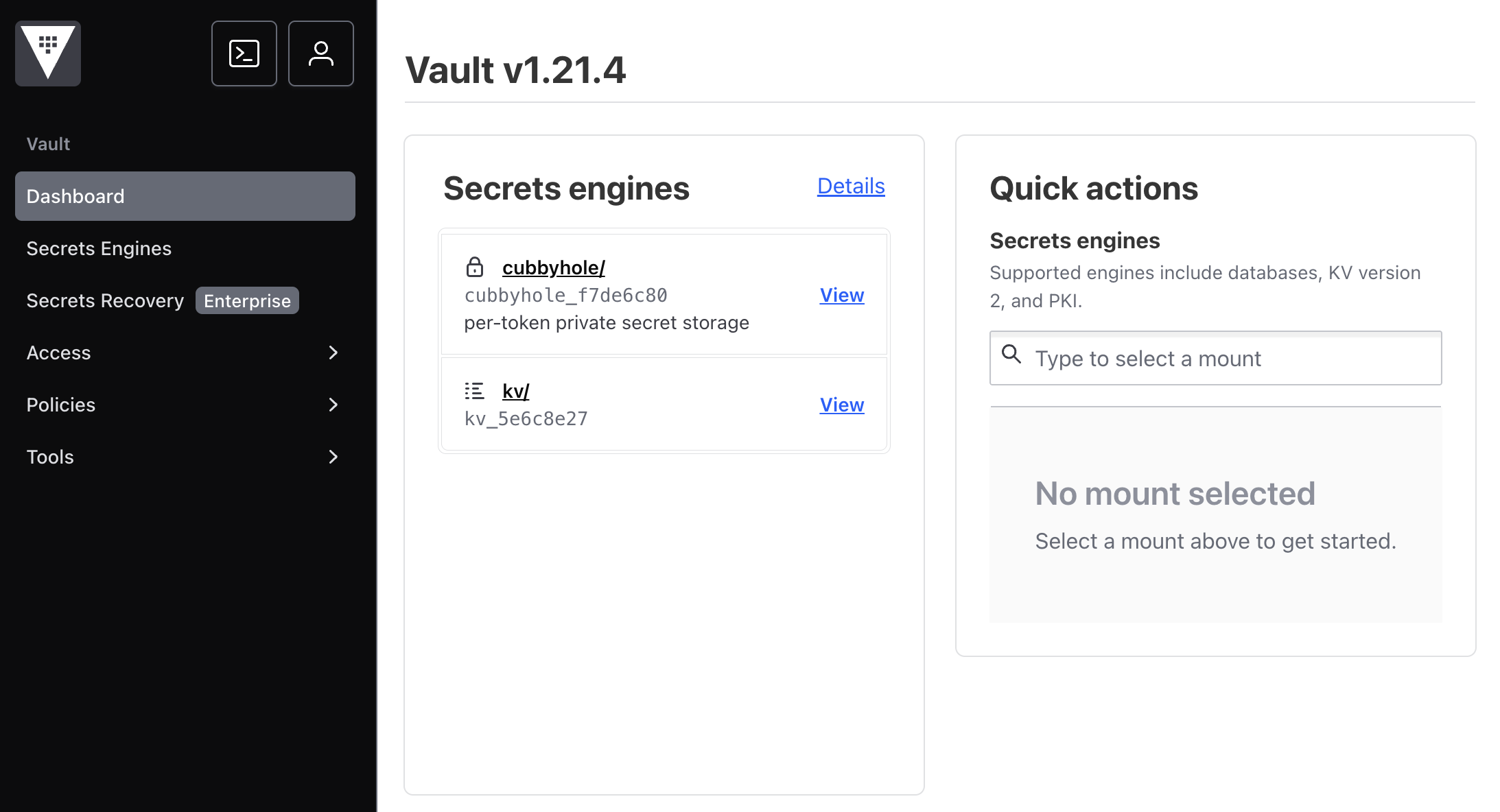 Figure 1. The Vault UI, as seen on initial login
 -
Once logged in, click on kv under Secrets Engines. This is the Key-Value version 2 (KV v2) engine — the most common way to store arbitrary secrets in Vault.
Do not modify or delete the existing secrets in Vault. Doing so could cause issues in the workshop environment. -
Click into the secrets/ path. You will see folders for the services that make up the workshop environment:
-
keycloak/— OAuth client IDs and secrets for SSO -
gitlab/— The GitLab root password -
rhdh/— Argo CD password, backend secret, and other Developer Hub credentials -
common/— Shared passwords used across servicesThese are the same secrets that Developer Hub and your applications will consume via ExternalSecrets when you configure SSO in a later module.
-
-
Click into
rhdh/and thenargocd-password. You can see the secret has avaluekey with the actual password stored. Click the eye icon to reveal it.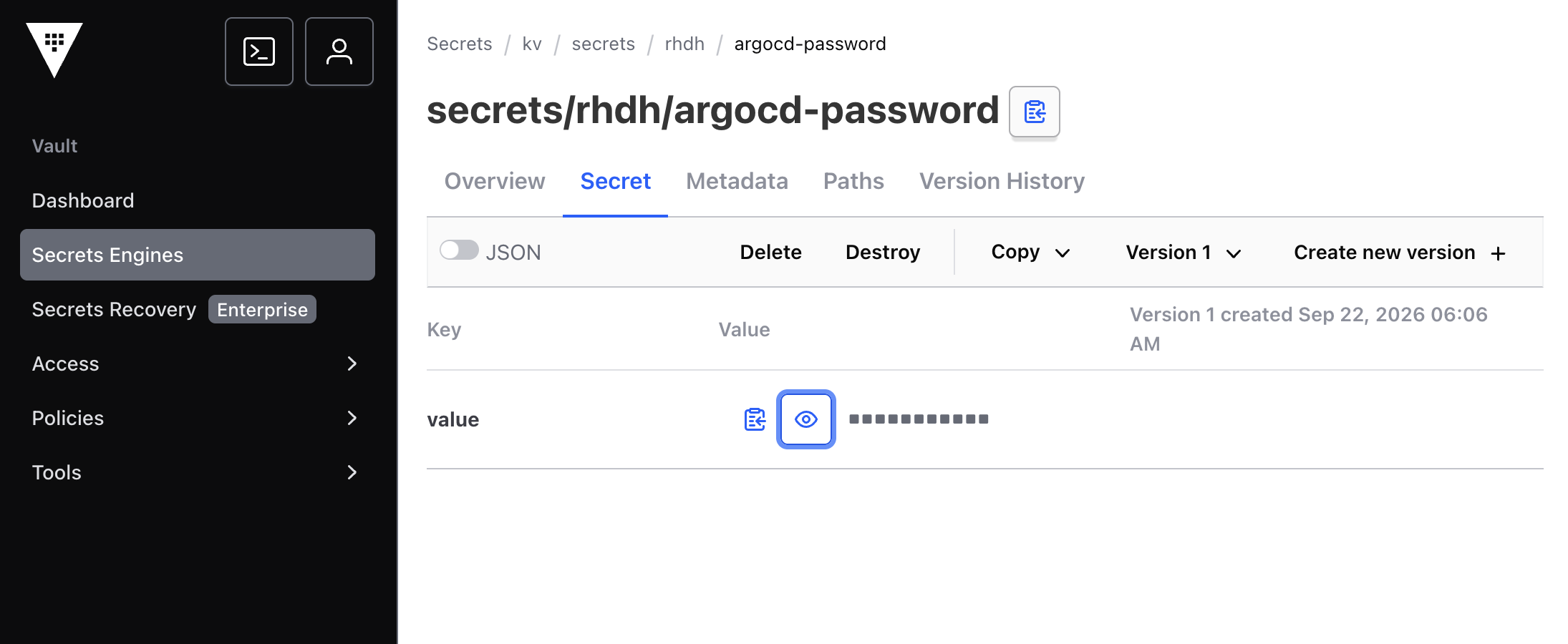 Figure 2. The Argo CD password that Developer Hub will use to retrieve data from Argo CD
This is the password that Developer Hub will use to connect to Argo CD — stored securely in Vault rather than in a Git repository.
Exercise 2: Create a secret in Vault
Now you will store your own secret in Vault, which you will pull into Kubernetes in the next exercise.
-
Navigate back to
kv>secrets/ -
Click Create secret
-
Set the Path to:
secrets/workshop/sample-secret -
Add a key-value pair:
Key Value messageHello from Vault -
Click Save
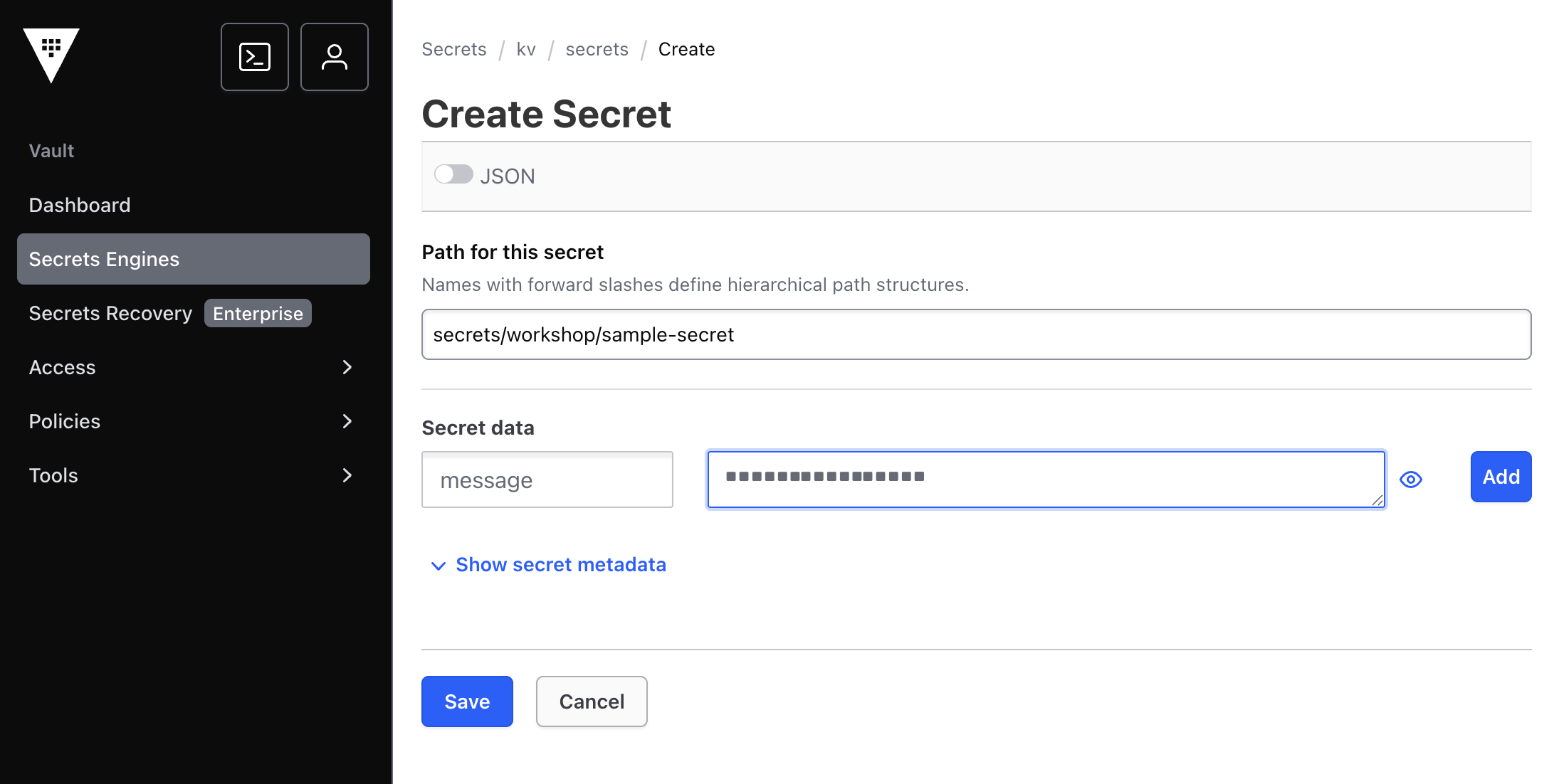
You’ve created a secret at the path kv/secrets/workshop/sample-secret with a single key named message. The full Vault path is what the ExternalSecret will reference to pull this value into Kubernetes.
Exercise 3: Understand the ClusterSecretStore
Before you can create an ExternalSecret, Kubernetes needs to know how to connect to Vault. This is the job of a ClusterSecretStore — a cluster-wide resource that holds Vault connection details and authentication configuration.
A ClusterSecretStore named vault-secret-store has already been created by the workshop infrastructure. Verify it exists:
oc get clustersecretstore vault-secret-storeThe STATUS column should show Valid, meaning the External Secrets Operator can successfully connect to Vault. This ClusterSecretStore is referenced by every ExternalSecret that needs Vault data — set up once by platform admins, reused across all namespaces.
Exercise 4: Create an ExternalSecret
Now you will connect the pieces: create an ExternalSecret that tells the External Secrets Operator to read the secret you stored in Vault and create a native Kubernetes Secret from it.
-
In the Terminal tab, create a new project to work in:
oc new-project external-secrets-sample -
Apply the ExternalSecret to the cluster:
oc apply -f - <<'EOF'
apiVersion: external-secrets.io/v1beta1
kind: ExternalSecret
metadata:
  name: workshop-sample
  namespace: external-secrets-sample
spec:
  refreshInterval: 5m
  secretStoreRef:
    name: vault-secret-store
    kind: ClusterSecretStore
  target:
    name: workshop-sample
    creationPolicy: Owner
  data:
    - secretKey: message
      remoteRef:
        key: secrets/workshop/sample-secret
        property: message
EOF
Notice what this manifest contains — and what it doesn’t:
-
secretStoreRefpoints to thevault-secret-storeClusterSecretStore you verified in Exercise 3 -
remoteRef.keyis the Vault path (secrets/workshop/sample-secret) — this is a reference, not a value -
remoteRef.propertyis the key name within that Vault secret (message) -
target.nameis the Kubernetes Secret that will be created (workshop-sample) -
target.creationPolicy: Ownermeans the ExternalSecret owns the Kubernetes Secret — if you delete the ExternalSecret, the Secret is deleted too -
No sensitive data appears anywhere in this file. It’s safe to commit to Git.
-
-
Check the ExternalSecret status:
oc get externalsecret workshop-sample -n external-secrets-sampleThe
STATUScolumn should showSecretSynced, meaning the operator successfully read the value from Vault and created the Kubernetes Secret. -
Verify the Kubernetes Secret was created:
oc get secret workshop-sample -n external-secrets-sampleThe External Secrets Operator created the Secret. Notice that
oc get secretonly shows its name, type, and age. The actual data is not displayed by default.If the Secret does not exist, retry the command after a few seconds. The operator should create it relatively quickly. -
As a cluster administrator, you can decode the secret to verify it matches what you stored in Vault:
oc get secret workshop-sample -n external-secrets-sample -o jsonpath='{.data.message}' | base64 -d && echoYou should see
Hello from Vault— the value you created in Exercise 2.In this workshop, you have admin-level access so you can inspect Secret values directly. In a production environment, regular users would have access to view ExternalSecrets (which contain only references) but not the Kubernetes Secrets they create. This separation means developers can see which secrets exist and where they come from without being able to read the sensitive values.
Clean up
Delete the project you created for this exercise. This removes the ExternalSecret, the synced Kubernetes Secret, and the namespace itself.
oc delete project external-secrets-sampleModule summary
You’ve seen the full secrets management flow: store a value in Vault, reference it with an ExternalSecret, and watch it appear as a native Kubernetes Secret.
What you accomplished:
-
Explored Vault and the pre-seeded secrets that power the workshop infrastructure
-
Created your own secret in Vault
-
Verified the ClusterSecretStore that connects the External Secrets Operator to Vault
-
Created an ExternalSecret that synced a Vault secret into Kubernetes
-
Confirmed the value arrived correctly and understood the access separation between ExternalSecrets and Secrets
Key takeaway: ExternalSecrets are the bridge between a secrets manager and Kubernetes. They contain references, not values — making them safe to store in Git alongside the rest of your manifests. When you configure Developer Hub with SSO and plugins in a later module, every credential will flow through this same pattern.
Next steps: In Module 5, you will explore another platform concern: resource management. You will set resource quotas and limits, then see what happens when a workload exceeds them.